When internet speeds feel slow, test the connection in layers: device, Wi-Fi, router, modem, plan speed, and the website or app you are using. Upgrade only after you know which layer is causing the bottleneck.
Speed troubleshooting map
Start with a wired test if possible, then compare Wi-Fi results from different rooms and devices. If wired speed is good but Wi-Fi is bad, the problem is likely coverage, interference, router placement, or router age. If wired speed is also bad, check the modem, service plan, provider outage, or line quality.
Know what the speed numbers mean
Download speed affects streaming, web browsing, file downloads, and app updates. Upload speed affects video calls, cloud backup, sending large files, and livestreaming. Latency affects gaming, video calls, remote desktops, and any app where delay is visible. Jitter means latency varies, which can make calls feel unstable even when download speed looks fine.
The FCC's Broadband Speed Guide gives rough minimum speed guidance for common activities. Treat those numbers as a starting point, not a guarantee. A household with several people streaming, gaming, backing up photos, and joining video calls needs more headroom than a single device doing one task.
Check the device before blaming the provider
A slow laptop, full phone, outdated network adapter, weak battery mode, VPN, malware, or browser extension can make one device feel slow. Test at least two devices. If only one is slow, restart it, update it, close heavy apps, and test another browser or app.
For website owners, remember that a slow site can look like a slow connection. If one website drags but others load quickly, the issue may be site performance. The craftcanvas.net/ article on page speed mistakes explains the publishing side of that problem.
Test Wi-Fi location and interference
Wi-Fi weakens through walls, floors, appliances, mirrors, and distance. Routers placed in cabinets, closets, or corners often perform poorly. Move closer to the router and test again. If speed improves dramatically, you have a coverage problem, not necessarily an internet-plan problem.
Congestion also matters. Apartment buildings and dense neighborhoods can have many networks competing. Older routers may struggle with many devices. Smart TVs, cameras, speakers, tablets, game consoles, and phones can quietly crowd a network.
Run a clean speed test
For the cleanest test, connect a computer directly to the router with Ethernet, pause large downloads and cloud backups, disconnect VPN, and run more than one test at different times. Then test over Wi-Fi near the router and in the room where you normally have trouble.
Record download, upload, latency, time of day, device, and location. A single test is a snapshot. A pattern is evidence. If speeds drop every evening, congestion or provider capacity may be involved. If speeds drop only in one room, Wi-Fi coverage is the more likely issue.
What to upgrade first
| Symptom | Likely cause | First upgrade or fix |
|---|---|---|
| Good wired speed, poor Wi-Fi everywhere | Old or weak router | New router or mesh system |
| Good speed near router, poor speed in back room | Coverage gap | Router relocation, mesh node, or wired access point |
| Slow uploads during video calls | Low upload plan or cloud backup conflict | Adjust backup schedule or choose plan with better upload |
| High latency while gaming | Wi-Fi instability or network congestion | Ethernet, router quality settings, or provider check |
| All tests below plan speed | Modem, line, outage, or provider issue | Contact provider with test records |
Router placement beats many upgrades
Place the router high, open, and central when possible. Keep it away from thick walls, metal cabinets, large appliances, and crowded cable bundles. If the modem must stay in one corner, consider Ethernet to a better router location or a mesh system.
Do not buy the most expensive router automatically. Match the router to your home size, device count, internet plan, and need for wired ports. If you work from home, use Ethernet for the desk that matters most. A cable can outperform a fancy wireless promise.
Plan upgrades that actually matter
Upgrade the internet plan if wired tests show the provider is delivering close to the plan speed but your household needs more capacity. Upgrade the router if Wi-Fi is the problem. Upgrade the modem if it is outdated or not supported for your plan. Upgrade device adapters only when older devices are the clear bottleneck.
For people running websites or remote work tools, hosting and connectivity can get mixed together. The craftcanvas.net/ beginner guide to web hosting explains the server side, while this speed checklist covers the home or office connection.
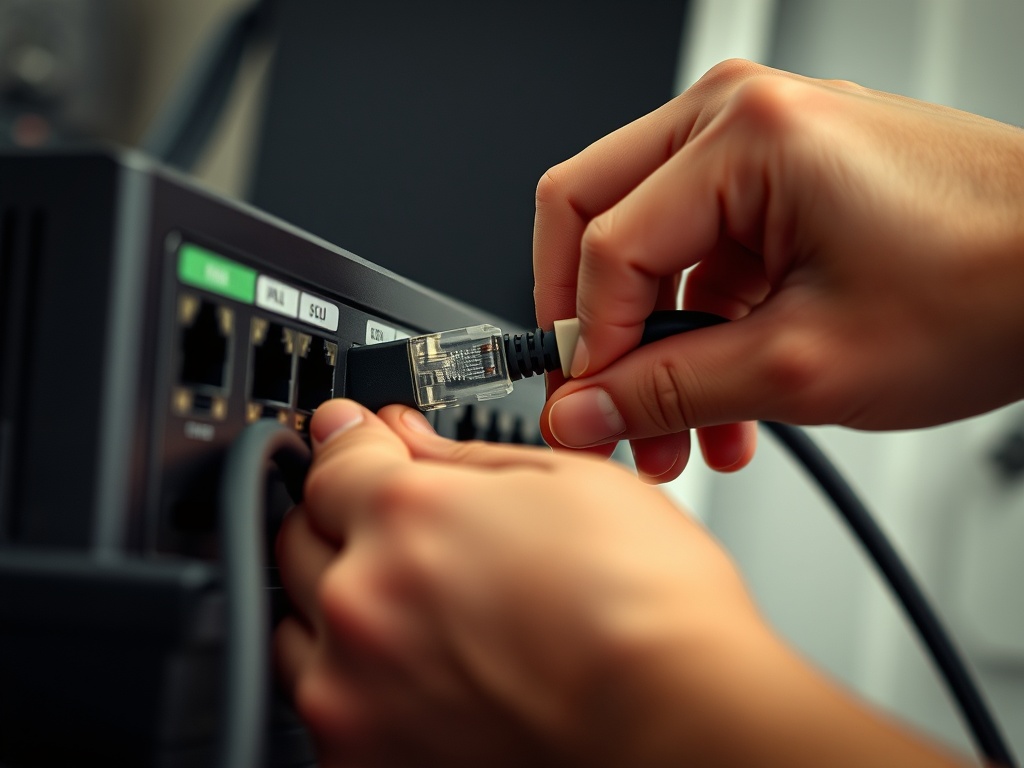
Separate speed from reliability
A fast connection that drops five times a day is still a bad connection. Track interruptions separately from speed. Note whether calls freeze, games disconnect, smart TVs buffer, or cloud backups restart. Reliability problems can come from weak Wi-Fi, overheating routers, loose coax or fiber equipment, old modem firmware, or neighborhood service issues. If the connection fails most often during heat, storms, or peak evening hours, that pattern is useful evidence.
Also check upload-heavy background tasks. Photo syncing, online backup, security cameras, and game updates can saturate upload capacity and make the whole connection feel broken. Scheduling those tasks overnight may solve the problem without a plan upgrade.
Warning signs that need provider support
Call the provider when wired tests are consistently below the plan, the modem frequently drops connection, signal levels are out of range if visible in the modem interface, or neighbors report the same outage. Share your test pattern, not just a complaint. Providers can act faster when you provide dates, times, wired results, and modem behavior.
Faster internet without wasting money
The safest order is test, isolate, fix placement, update equipment, then upgrade the plan. Many households pay for more speed when the real problem is router placement or Wi-Fi coverage. Others buy routers when the wired connection is already underperforming.
Your next step is to run one wired test and two Wi-Fi tests today: near the router and in the slowest room. Those three results usually reveal what to fix first.